
Content & publishing
When your website needs a CMS, search and filters
A CMS becomes useful when publishing the next item means repeating a clear process. Work through a fictional resource library to decide what content to structure, who should edit it and how readers will find it.
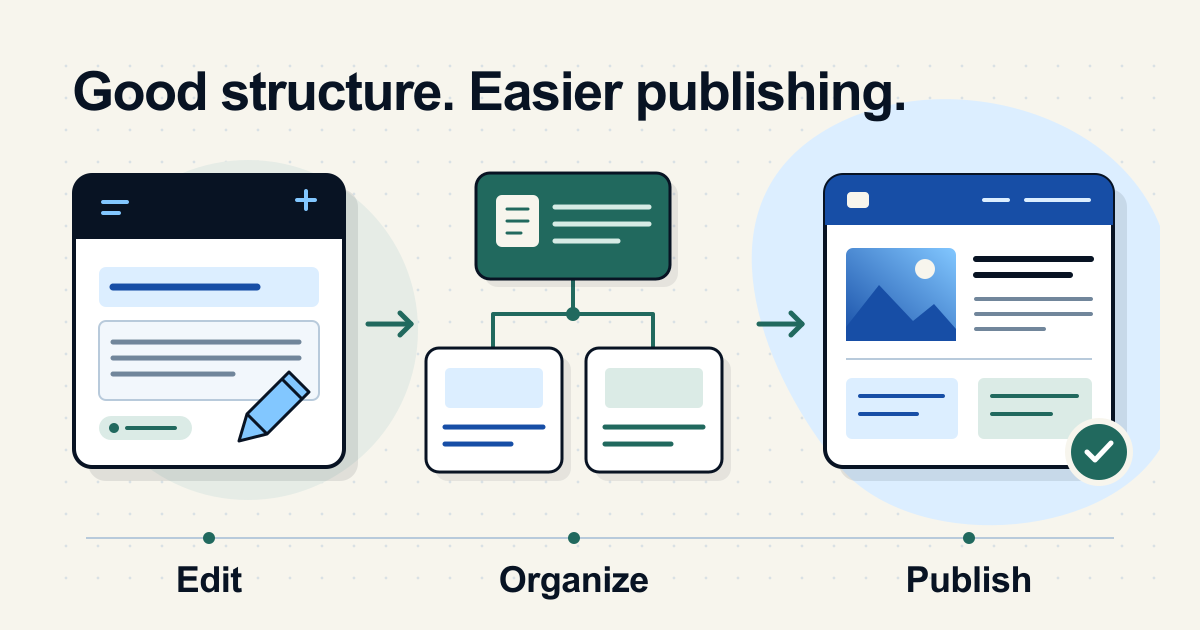
Start with the work that repeats
A content management system, or CMS, gives people a way to manage website content. MDN’s definition includes publishing, organizing, editing and removing content. The useful question is what those jobs look like on your website.
Consider a CMS when publishing a new guide, product profile or archive entry means copying an existing page, replacing the same fields and updating several lists by hand. It can also help when someone needs to edit content without changing code, or when a shared fact appears in many places.
Ordinary pages can still be enough. A small service website with occasional changes and a reliable update process may not need a separate editorial dashboard. Even a large archive with infrequent updates can be managed through a documented development workflow. Page count alone does not settle the decision.
Write down the next three updates you expect to make, who will make them and how quickly they need to appear. “Publish a new guide each week without rebuilding its layout” is a useful requirement. “Make the site more advanced” is not specific enough to choose a system.
Inventory a fictional resource library
Imagine Sample Craft Library, a fictional website publishing practical craft guides. Its owner wants consistent article pages, contributor biographies and a way to find suitable projects. The content and people in this example are invented; its example.com addresses are for demonstration.
The sample inventory contains eight items: four guides, two contributor profiles, an About page and a Contact page. Three guides are already published. A fourth, “Apply a wood finish,” is a draft. “Repair a paper cover” needs a clearer address when it moves.
Download the fictional content inventory (CSV) and the CMS planning worksheet (Markdown). Open the CSV in a spreadsheet or text editor, then replace the examples with your own inventory. This is a planning document, not an import file for a particular CMS.
Start with a representative selection of existing material. Record its type, current address, owner, publication status and migration decision. Include awkward cases: an old page without an owner, a missing image, a draft, or two pages that should become one. A list containing only your best articles will hide work the new system must handle.
For each item, decide whether to keep, revise, merge or remove it, or create it as new content. That decision comes before importing everything. An About page and a guide do not necessarily need the same fields or editing process.
Define fields and relationships before layouts
A content model describes the kinds of content you keep, the information each kind needs and how items relate. For the sample library, start with two repeatable types:
- Guide: title, URL slug, summary, instructions, topic, difficulty, contributor and review date. An optional image needs an appropriate description and any required credit.
- Contributor: name, URL slug and biography. A guide points to its contributor instead of storing a separate copy of the biography.
Keep topic and difficulty values consistent. The example uses Paper or Wood, and Beginner or Intermediate. If editors enter “Wood,” “woodwork” and “Wood projects” for the same topic, a filter needs extra rules to treat them alike. Choose a short agreed list that matches how readers look for content.
Decide which fields are required and what a useful error looks like. A guide may need a title, unique slug and published contributor before launch. An image can remain optional if the template has a deliberate layout without one. Test those choices in the actual editing form.
In Sanity, for example, schemas define document types and fields used by the editing interface, and references connect related content. Those are implementation examples of the model, not reasons every site needs that platform.
The same guide record could supply its full page, a topic listing and a contributor’s list of articles. The template decides how each view looks. Keeping a biography in one contributor record makes a single editorial update possible; the implementation still needs to refresh every public view that uses it.
Plan search, filters and browsing separately
A CMS manages content. Readers still need ways to find it. Define these three journeys before adding controls:
- Browse: “Show me paper projects.” A clear topic page or a short curated collection may be enough.
- Search: “Find the paper-cover repair guide.” Decide which fields are searched and what each result shows.
- Filter: “Show only beginner paper projects.” Filters narrow the current list using agreed fields.
In the fictional inventory, a title search for “paper” should find the two published paper guides. Selecting Paper and Beginner should leave “Fold a paper box.” The draft wood-finishing guide should appear in neither public browsing nor search.
A rule in an editor that displays only one topic is different from a control visitors can change. Ask to see the actual visitor interaction. Also agree whether searching within a topic keeps that topic selected, whether multiple filters combine, and how the reader clears them.
Test an exact title, a broad term, a query with no matches and a filter combination with no results. Show the active choices and provide a clear reset. Check labels, keyboard access and the narrow-screen layout. A small library may need only good topic links today; add more controls when you can name the reader task they solve.
For a real example, Plainview’s HorroRated build brings together reusable archive entries, collections, franchise guides and search. Its project story describes the publishing structure behind those discovery routes. The HorroRated brand and editorial content remain with its owner.
Decide who can edit and publish
Give each stage an owner: drafting, checking sources and images, approving the page, publishing, correcting and eventually retiring it. One person can hold several responsibilities; the process still needs to be clear.
Match account permissions to that work. WordPress roles, for example, separate Contributors who can prepare their own posts from Editors who can publish and manage posts. Check the equivalent capabilities in the proposed setup, including who can delete content or change site settings.
Have the intended editor perform a complete task before accepting the system: create a draft, add a contributor, preview it, request a correction and publish the approved version. Check what happens when a required field is missing or related content is still a draft. A dashboard demonstration by its developer does not answer whether the editor can use it.
Keep a short publishing checklist beside that workflow. The article review guide covers sources, structure, wording and links. Also agree how revisions can be recovered, who handles software updates and who restores the site after a failure. Publishing access and recovery responsibility are different jobs.
Test the migration before moving everything
Move a small representative sample into a staging site first. Include a long title, an optional image left empty, a contributor shared by two guides and the unpublished draft. Check the editor and the public pages together.
- Compare the content. Confirm headings, links, images, descriptions, credits and relationships survived the move. Inspect formatted instructions as well as ordinary paragraphs.
- Check discovery. Find the sample through its intended topic, search and filters. Confirm drafts stay private. Change a title, publish it and verify every relevant public view updates.
- Check addresses. Compare current and proposed URLs. Preserve useful existing paths where practical; map any changes before launch.
- Rehearse an edit and recovery. Confirm the owner can correct an item and knows how to recover from an unwanted change.
The sample CSV gives “Repair a paper cover” a new path while keeping the other published paths. Its old address therefore needs a deliberate migration action. Google’s site-move guidance describes URL mapping, redirects and link updates. Use the guide to changing existing URLs to plan and test that work; selecting a new CMS does not preserve old links automatically.
Ask what you can export and what recovery requires. A content file may not include uploaded media, templates, settings, accounts or the code that renders the site. Check the actual export and restoration procedure before treating either as your way to move providers later.
Turn the decisions into a useful brief
For the fictional library, the brief now has a clear shape: recurring guides, reusable contributor records, controlled topic and difficulty labels, a review step and a tested public discovery path. The About and Contact pages can stay simpler. Those requirements are specific enough to compare approaches without starting with a product name.
Record your own content types, expected update frequency, editor tasks, reader journeys and migration decisions in the worksheet. Include ongoing costs and who will maintain the system. Keep capabilities that are necessary for launch separate from later ideas.
The Website Project Planner can bring those requirements into a broader brief with page needs, responsibilities and dependencies. Before handoff, use the website handoff checklist to confirm account ownership, access and operating instructions. For help designing and building the publishing system itself, explore Content Platforms.
CMS questions
Questions about choosing a CMS
Does a small business website need a CMS?
It depends on who updates it and what changes. A small site with frequent events, resources or product entries may benefit from an editing interface. A few stable pages with a dependable update process may be easier to maintain without a separate CMS. Start with the publishing tasks and responsibilities.
How many pages should a website have before adding a CMS?
There is no universal page threshold. Repeated fields, update frequency, shared information and editing responsibilities are more useful signals. Inventory a representative sample and identify work that is becoming difficult to repeat accurately.
Does a CMS determine what the website looks like?
A CMS manages content; templates and the website implementation determine how that content is presented. Some products combine visual design and editing in one interface, while others separate them. Review the public layouts and the editing experience before choosing a setup.
Will a CMS automatically give the site search and filters?
Do not assume that it will. Confirm the public features in the proposed implementation: which fields search covers, how results update after publishing, what filters readers can change and how drafts are excluded. An editor’s search box or a configured collection list is not proof of the visitor experience.
Can someone edit content without permission to publish it?
Many systems support different roles, but the available permissions and review steps vary. Ask for a demonstration using the intended editor account: create a draft, submit it for review and confirm that only the designated publisher can make it public. Check deletion and settings permissions separately.
Can existing content move into a CMS without changing its URLs?
Often it can, if the new platform and routing support the existing paths. Record current and proposed addresses before migration, preserve useful paths where practical, and plan redirects for changes. See the guide to changing existing URLs for checks to make before launch.