
Publishing workflows
How to prepare a social sharing image and its metadata
Create a clear sharing image, connect it to your page with Open Graph and X tags, and check what is actually published before sharing the link.
Plan the card and page together
A sharing image gives someone a quick reason to open a link. Start with the page’s actual subject and a clear promise: what will the reader learn or do? A useful card for a workshop planning article should say something about planning a workshop, even when the publisher’s logo is familiar.
There are three connected pieces to prepare: the image file, its public web address and the page metadata that points to it. Saving artwork on your computer finishes only the first piece. Adding an image inside an article does not, by itself, confirm that the page has the intended sharing tags.
Open Graph metadata describes the page for services that read it. The Open Graph protocol defines title, type, image and page URL as its basic properties. A description and image alternative text add useful context. Keep those values consistent with the page people reach.
A fictional article to work with
Suppose Sample Workshop Studio, a fictional publisher, has written a guide to planning a small creative workshop. These practice values describe that invented article. The example.com addresses are demonstration addresses, not a live article or hosted image.
- Page URL
https://example.com/guides/first-creative-workshop- Title
- Plan your first creative workshop
- Description
- A practical checklist for choosing a project, gathering materials and planning a manageable session.
- Site name
- Sample Workshop Studio
- Planned share image URL
https://example.com/images/first-creative-workshop-social.png- Image alt text
- Navy card reading Plan your first creative workshop, with a planning checklist subtitle and the Sample Workshop Studio name.
The title states the task. The description explains what is inside. The image description conveys what the artwork contains, including its meaningful text. It is not a second promotional slogan.
Use the editable sharing-image publishing checklist to keep your own values together. It includes this completed practice example and a blank record for a real page. Replace every fictional name, sentence and address before installation.
Make and export the image
Open the Open Graph & Social Card Generator. Its artwork editor creates a 1200 × 630 pixel image. That is the tool’s canvas size, not a promise of identical display everywhere. LinkedIn’s current sharing-module guidance recommends a 1.91:1 ratio and specifies a 5 MB maximum file size. Check the requirements of the actual destination before publishing.
- Enter the practice title, description and site name in Build the social metadata.
- In Create the sharing image, choose the Bold artwork layout. Keep its navy background, white text and pale blue accent. This example uses no uploaded photo or logo.
- Select Use metadata text to copy the title, description and site name into the artwork. This is a one-time copy. If you change the metadata later, repeat it or edit the artwork fields separately.
- Inspect the image at a small display size. Keep the main idea readable, leave room around it and remove unnecessary wording. Resolve any text-fit error before exporting.
- Choose Download PNG, then open the saved file. The tool names it
social-card-1200x630.png. A JPEG export is also available.
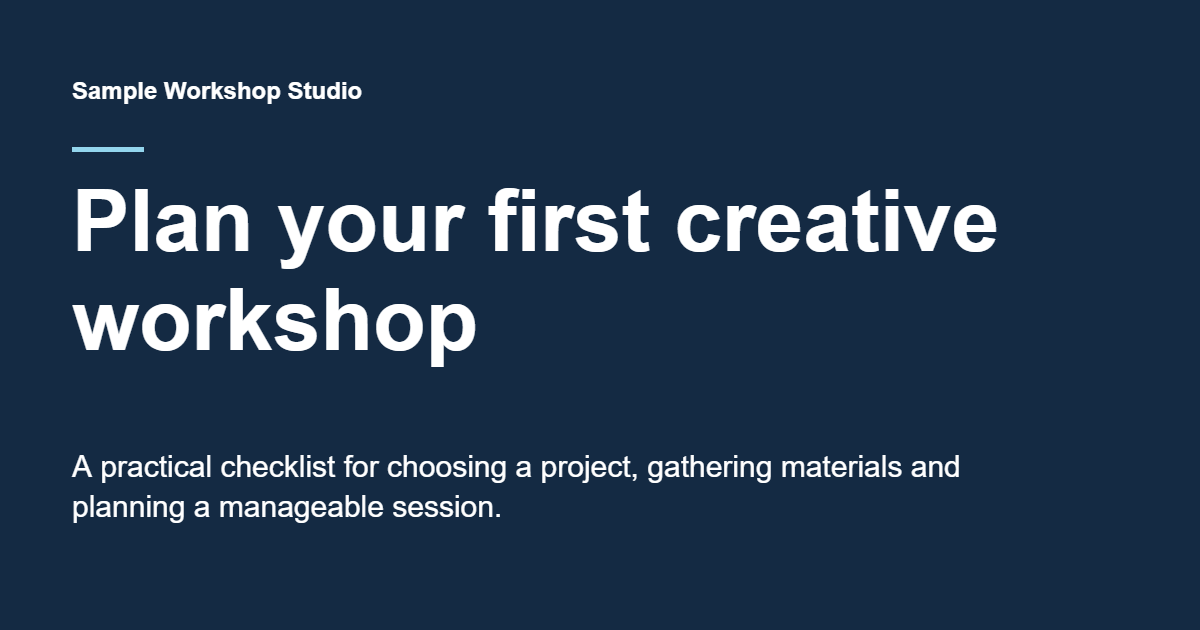
Download the example sharing image to inspect it. For your own design, use artwork or photographs that you have permission to publish. Choose imagery that explains the subject, and avoid relying on a small logo to do all the work.
PNG is a reasonable starting choice for this flat-color text design. If a photograph makes the file large, compare the JPEG export or use the Image Compressor & Resizer. Inspect the actual result for soft lettering, artifacts and changed dimensions before uploading it. The smaller file is useful only if the card remains clear.
Give the image a public address
Upload your finished file to the website’s media library or another stable image location that you control. Copy its full HTTPS address. The address must return the image itself, rather than an editing screen, a file-sharing preview or a page asking visitors to sign in.
For the fictional example, the intended address is https://example.com/images/first-creative-workshop-social.png. The generator can include that address in markup, but entering it does not create the file or upload anything. For a real article, use the actual address of your uploaded image.
Open that exact image URL while signed out. Check that it displays the final file and that its dimensions and size match your chosen export. This is a useful first check, but a browser loading the image does not prove that every platform’s crawler can retrieve it. LinkedIn specifically warns that protected locations or website blocking can prevent image retrieval in its sharing guidance.
A path on your computer, a temporary browser preview address or an expiring private link is not a dependable sharing-image address. Keep the image available as long as the article may be shared. If your hosting protection blocks a legitimate preview crawler, review that specific configuration with the person responsible for the site.
Install the page metadata
Return to the generator and finish the remaining fields: Page URL, Share image URL and Image alt text. Choose Article for Open Graph type and Large image for X card layout. For this example, the output includes an og:type value of article and a twitter:card value of summary_large_image.
The generator writes Open Graph and X tags, including the two image descriptions. X tag names retain the twitter: prefix; that naming is also present in the official developer card sample. Do not rename those fields to x:.
Choose Copy all meta tags or Download meta tags. The download is a small HTML snippet named social-meta-tags.html. You can inspect the example metadata download in a text editor. It contains the fictional values above and is not ready for installation on a real site. Opening a snippet of meta tags as a normal web page may show a blank screen because it has no visible article body.
The tags belong in the article page’s HTML <head>. If your CMS or website framework already provides social title, description and image fields, update that existing source. Do not paste a second competing block into the visible article body. A developer can connect the values to the page template when there is no suitable editing field. MDN’s metadata guide explains the distinction between the head and visible page content.
Publish the change, then inspect the actual page source for the intended values and accidental duplicates. The generator does not install tags or replace the page’s ordinary title, search description or canonical link. Its snippet also does not add image width, height or type tags; include accurate values through your publishing setup if needed.
Check the live page and cached preview
The generator’s Tags ready status means its local field checks passed. Its preview tabs use the artwork in the editor and approximate card layouts. The tool does not request your image URL, inspect a live page or establish what Facebook, LinkedIn or X will display.
- Open the real page. Confirm that the shared address reaches the right article without requiring an editor login.
- Inspect the published tags. Compare the title, description, page URL, image URL and image alt text with your record. Check whether a template or plugin still emits older values.
- Open the exact image URL. Confirm that it returns the intended artwork. If an old file appears, resolve the website or image-delivery cache before asking a sharing platform to refresh.
- Check the intended platform. For LinkedIn, use Post Inspector on the real article URL. Review any retrieval errors and compare its result with the published source.
- Record what was actually checked. Save the date, URL, artwork revision, platform and result. A successful local preview, public image request and platform preview are separate pieces of evidence.
If LinkedIn shows an older image after the website is correct, its Post Inspector instructions explain how to refresh cached URL information. The change applies to new posts containing that URL; existing posts keep their previous preview. Do not promise that replacing a file will rewrite every already-shared card.
Other services may crop the artwork, shorten or omit text, choose a different presentation or retain cached information. Check the destinations that matter to your audience after meaningful changes. A blank image, an old image and a cropped image call for different investigations: delivery, caching and composition respectively.
Keep a repeatable publishing check
Keep the final artwork file and its public URL with the page title, description, image alt text and review notes. Assign someone to update them when the article’s promise changes. A new headline paired with artwork from an earlier version can be confusing even when every tag is technically present.
The publishing checklist gives this work a small, repeatable record. Finish with the actual published page and the sharing destination you intend to use. For the wider page review, follow the business-page publishing guide; when handing the site to another person, include the image location and metadata editing instructions in the website handoff.
Sharing image questions
Questions about images and social metadata
Can every page use the same logo as its sharing image?
A shared brand image can be a useful fallback, but it gives little information about an individual article. For important pages, use a topic-specific image or a clear title treatment so someone can understand the destination. Keep the subject recognizable at a small size.
Should a sharing image be PNG or JPEG?
Compare the exported files. PNG is a useful starting point for flat colors and text; JPEG may produce a smaller photograph. Check lettering, image quality, dimensions and the destination’s current file requirements. Plainview exports both at 1200 × 630 pixels, but that does not guarantee every platform will display the whole image.
Can the image URL point to a file on my computer?
No. A sharing service needs an accessible web address for the image. Upload the finished file to a stable public location and use its full HTTPS URL. A local file path, temporary browser preview or private editing link is not a substitute.
What should the image alt text say?
Describe the image’s useful content, including meaningful text that appears in it. For the fictional example, the description identifies the navy card, workshop title, checklist subtitle and publisher name. Avoid keyword lists or a sales line that does not describe the artwork.
Why does the generator look correct while the shared link does not?
The generator uses local artwork for its approximate preview and checks the entered fields. It does not fetch the image URL or inspect the published page. Check the live tags, exact image address, crawler access and platform cache separately. A Tags ready status is not a third-party acceptance result.
Will changing the image update links that have already been shared?
Do not assume it will. Platforms can retain their own previews. LinkedIn’s Post Inspector guidance says a refresh affects new posts containing the URL, while existing posts keep their old preview. Check the intended service’s current behavior and record what changed.