
Design & publishing
Before you print a QR code
A QR code is easy to create. A useful printed code also needs a reliable destination, enough clear space and a test at the size people will actually scan. Follow a fictional workshop flyer from its link to the final print check.
Choose a destination that can last
Before creating the image, finish this sentence: “After scanning, the reader should be able to…” View workshop dates, open a menu or request an appointment are specific answers. A generic homepage may leave the reader searching for the information the flyer promised.
Choose a public page that works on a phone and an address you can maintain for as long as the printed material might circulate. Check it without being signed in. A temporary preview, private document or draft booking page is a poor destination for material you cannot easily retrieve.
The Plainview QR Code Generator creates a static code: the image contains the supplied address directly. It does not set up a redirect service or an editable destination. You can update the content at that address later, but changing the encoded address requires a new QR image.
If you control the website, a lasting path such as /workshops can show current dates after one event ends. If that path must move, preserve it with an appropriate redirect and test the complete journey. The guide to changing existing URLs covers that decision. Assign someone to maintain the domain and page; saving a QR image does not keep either online.
Plan one fictional workshop flyer
Imagine a small creative business promoting autumn workshops on a counter card. The card says “See workshop dates and booking details,” with a QR code and a readable website address underneath. This is a fictional example; example.com/workshops is a demonstration address, not a working booking page.
The business wants to distinguish visits from this card. In the UTM Campaign Link Builder, use these example values:
| Field | Value | Purpose |
|---|---|---|
| Website URL | https://example.com/workshops | The page the card promises. |
| Source | flyer | The printed promotion. |
| Medium | qr | The agreed label for this route into the site. |
| Campaign | autumn_workshops_2026 | The promotion across its placements. |
| Content | counter_card | This particular placement. |
https://example.com/workshops?utm_source=flyer&utm_medium=qr&utm_campaign=autumn_workshops_2026&utm_content=counter_cardThese labels are optional. A plain destination URL works when campaign reporting is unnecessary. If you use tags, agree on their spelling and reporting use before printing. They label incoming traffic; they do not create a scan counter. Google’s campaign URL documentation explains how a configured analytics property uses these values.
The example’s qr medium is a custom label. It may appear as “Unassigned” in GA4’s default channel grouping because that grouping follows Google’s channel rules. Review source/medium and campaign values directly or define a suitable custom channel group. Do not label a flyer “email” just to make it fit a default channel.
Keep personal information and private access tokens out of the address. Anyone with the printed code can read its contents. The UTM campaign walkthrough explains naming and reporting in more detail.
Generate the code and review its exact content
- Open the QR Code Generator and choose Website URL.
- Paste the complete example into Website address. Keep M · Balanced error correction and Standard image resolution for this walkthrough.
- Select Generate QR code. This example produces a 424 × 424 pixel image with 120 UTF-8 bytes of content and M error correction.
- Read Complete encoded content. Compare it character for character with the intended link, including the page path and campaign labels.
- Save the PNG or SVG for your design, then inspect the downloaded file. For real work, open the actual destination separately and test what the reader can do there.
The tool generates the image in your browser. It does not open, shorten or validate the destination’s availability. A successful preview confirms that it generated a code, not that a booking page works.
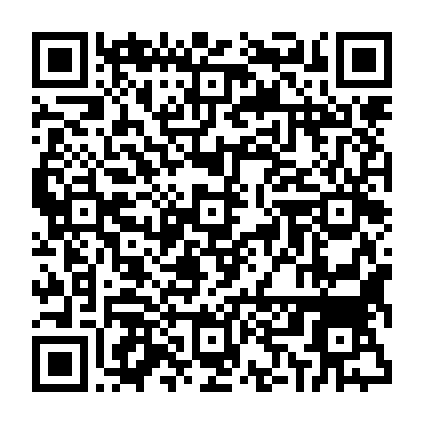
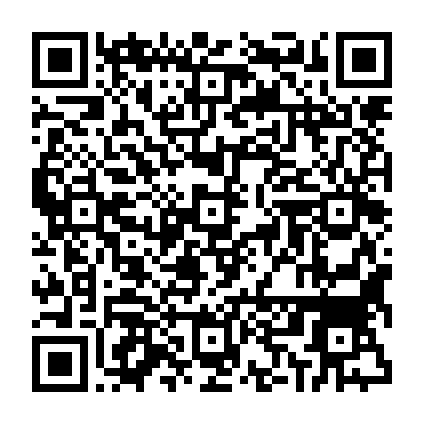
Download the example PNG or example SVG to inspect the files. Both contain the same example URL.
Protect the pattern and its white border
The white space surrounding a QR code is its quiet zone. DENSO WAVE specifies a clear margin four modules wide on every side; a module is one small square in the pattern. Plainview includes that margin in both exports. Keep it intact when placing the image in your layout.
Use the black-on-white artwork as supplied. Keep captions, decorative borders, photographs and other marks outside its white area. Scale the whole square proportionally. Cropping, stretching, rounding its squares or covering the center with a logo changes the symbol you are asking a phone to read.
Longer content can need a denser pattern. At the same printed width, more squares leave less room for each square. DENSO WAVE’s capacity guidance explains the relationship between content and QR versions. Remove unnecessary labels or choose a shorter lasting path before shrinking a difficult code. A third-party short link also creates another service you must depend on.
Error correction adds information that can help recover damaged data. Raising it can also increase the code’s size or density. DENSO WAVE describes that tradeoff. M is the starting setting in this example, not a promise that every printed result will scan. A higher setting does not make a logo overlay or a missing border safe.
Choose a file and set the printed size
SVG preserves the shapes when resized in compatible design software. Use it when your layout application and printer accept it. PNG is useful for applications that require an ordinary image; use the exported file instead of a screenshot. If the PNG is too small for the layout, return to the generator and choose Larger before regenerating.
Image resolution and printed dimensions are different settings. “Standard” gives this example 424 pixels across. It does not specify a width in inches or millimeters. Your design software determines how those pixels are placed on the page.
There is no single minimum printed width that makes every QR code reliable. Data density, print quality, surface, viewing distance and the reader’s camera all matter. DENSO WAVE’s module-size guidance relates readability to both printing and scanner capability. Give the code enough space, then judge it from a physical proof of your actual layout.
Place a short instruction beside it so people know what they will open. Also print a readable address or another practical way to reach the same information. Keep that text outside the quiet zone. Someone who cannot use the camera should still be able to act on the flyer.
Test the final print, not only the preview
Export the finished flyer, inspect that exported layout and print a proof at the intended physical size. A successful scan from a large monitor does not establish that a small printed code will work. Test the paper, finish and placement as closely as practical to the final use.
- Check the proof. Make sure the pattern is square, the border is clear and no crop, fold or design element crosses it.
- Try more than one phone where available. Use the ordinary camera or QR reader people are likely to use. Try the expected distance, lighting and viewing angle without relying on an unusually close or perfectly lit scan.
- Inspect the address offered by the scanner. Confirm the correct domain and path before opening it. Check the complete landing address after any redirects.
- Complete the intended journey. Read the dates or menu, find the booking action and confirm the mobile page is usable. Use an agreed test procedure if an action creates a booking, payment or message.
- Check reporting if it matters. Confirm campaign values reach the intended analytics setup under its consent settings. Record a visit separately from whether the camera recognized the code.
- Record and repeat. Save the tested artwork revision, print size, devices, date and findings. If the payload, artwork, placement or print settings change, repeat the affected checks.
Use the editable QR print checklist to keep these checks with the artwork. It includes blank test rows and a place to assign ongoing destination checks.
If a phone cannot recognize the pattern, examine size, sharpness, border, contrast and glare. If it recognizes the code but the wrong page opens, examine the encoded address and redirects. If the page opens but reports show no visit, examine analytics collection and reporting. These are different failures and need different fixes.
Keep the link useful after printing
Save the exact URL, QR image and final flyer together. Record where the material is distributed, who maintains the destination and when it needs another check. For the fictional workshop card, the page could replace a finished schedule with upcoming dates rather than disappearing after the first event.
Start with the QR Code Generator when your destination is ready. Use the UTM builder first if the promotion needs campaign labels. The business-page publishing checklist helps check the destination before you send readers to it.
Ready for print
QR printing questions, answered
Do QR codes made with Plainview expire?
The saved code has no expiry timer or Plainview redirect subscription. It contains the supplied content directly. A website link can still stop working if the domain expires, the page is removed or an intermediate service becomes unavailable. Keep responsibility for the destination with the printed artwork record.
Can I change the destination after the code is printed?
You cannot change the address stored in the printed pattern. If you control that address, you can update its page or configure a suitable redirect and test the resulting journey. Otherwise, a different address needs a newly generated code and replacement artwork.
What is the smallest size I should print?
There is no one width that works for every payload, printer, surface and camera. Keep the four-module margin, allow enough space for a sharp pattern and test the actual finished layout at its intended size and viewing distance. A pixel dimension alone does not establish a safe printed size.
Can I put a logo inside the QR code?
Plainview exports a complete black-on-white code without a logo overlay. Keep branding beside the code and outside its quiet zone. Covering the pattern removes information, and choosing higher error correction does not guarantee that a decorated result will scan.
Do UTM tags count every scan?
No. UTM tags label visits that a compatible destination analytics setup can collect. A camera may recognize a code without the person opening the link, and consent, blocked measurement or redirects can affect collection. A shared link also retains its labels. See the UTM campaign guide for reporting checks.
Should I send the printer a PNG or an SVG?
Ask which format the layout and print workflow accepts. SVG preserves the vector shapes when resized; PNG is broadly usable but has a fixed pixel count. Supply the original export, preserve its proportions and border, and check the final print-ready layout. Either format still needs a physical proof at the intended size.